


In my previous article i explained how to deploy Windows LAPS if you are using Group Policy. Today i will explain how can deploy Windows LAPS from Intune and keep the Local Administrator Password to the Azure AD.
For those that have Intune let's see which are the prerequisites before start to use the Windows LAPS and how to deploy it.
Prerequisites
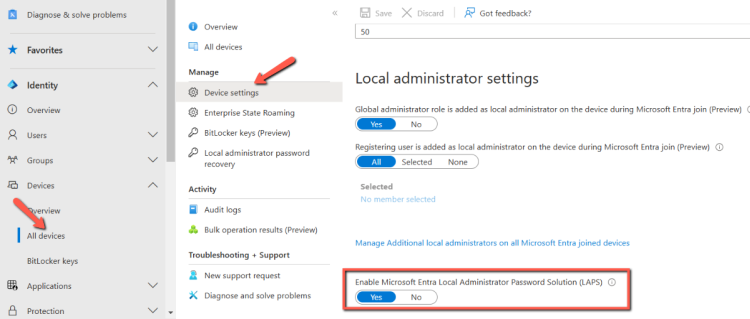
Before proceed to deploy the Windows LAPS from Intune you should enable the Microsoft Entra Local Administrator Password Solution in Entra ID.
- Login to Microsoft Entra Admin Center
- Click on Devices -- Device Settings
- Change to yes the Enable the Microsoft Entra Local Administrator Password Solution.
How to setup Windows LAPS in Intune
Let's proceed to setup and deploy the policy for the Windows LAPS in Intune.
- Login to the Microsoft Intune Admin Center
- Select Endpoint Security from the left menu
- Select Account Protection
- Click on Create Policy

- In Platform Select Windows
- In Profile select Local Admin password solution (Windows LAPS).
- Click Create.

- Type a Name that you would like to give. Click Next.

- Here you should configure the following settings to enable the Windows LAPS.
- Click on Backup Directory to select where you should backup the passwords.
- For our scenario i will keep the Azure AD Only. However you have the option to save it in Microsoft Active Directory as well. Remember that you have the option to backup the local administrator password to Windows Active Directory or Azure AD. Not in both of them.
- In Password Complexity select the complexity based on your requirements
- In Password Length select the length of the password based on your requirements as well.
- If you have create a custom Local Administrator Account you must enable the Administrator Account Name and type the Local Administrator name that you are using. Note that the Windows LAPS it's not create the Local Administrator accounts.

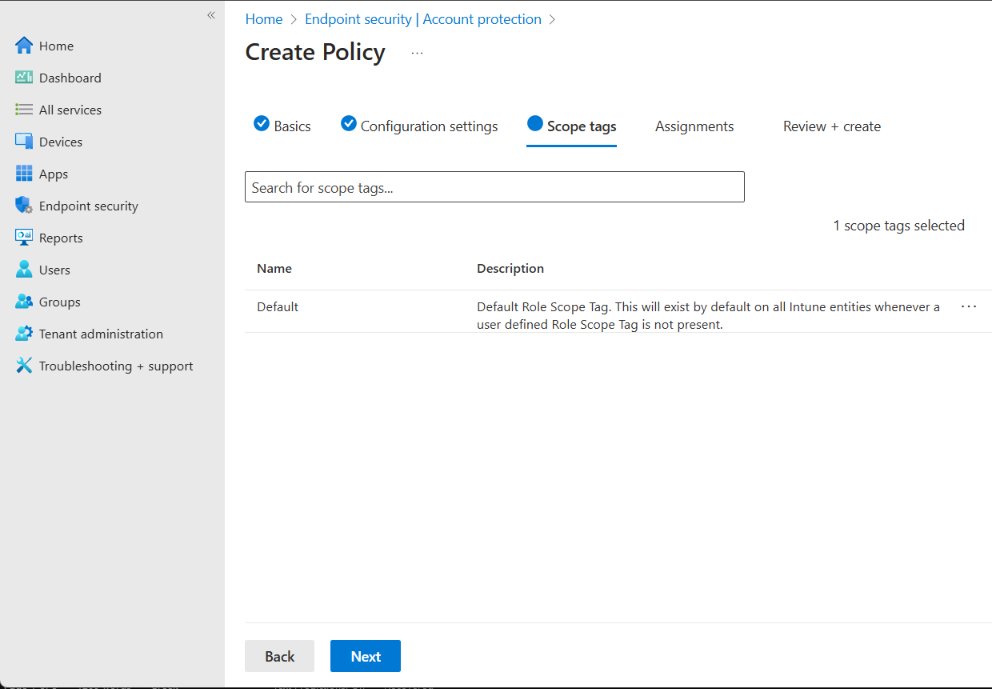
- In Scope Tags click Next.
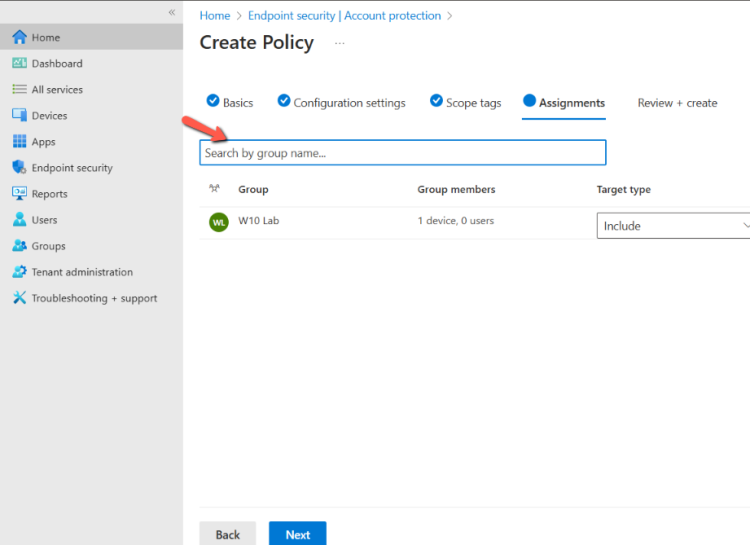
- Select the Group that includes the PCs to which will apply the Windows LAPS Policy. Click Next.
- Click Save.
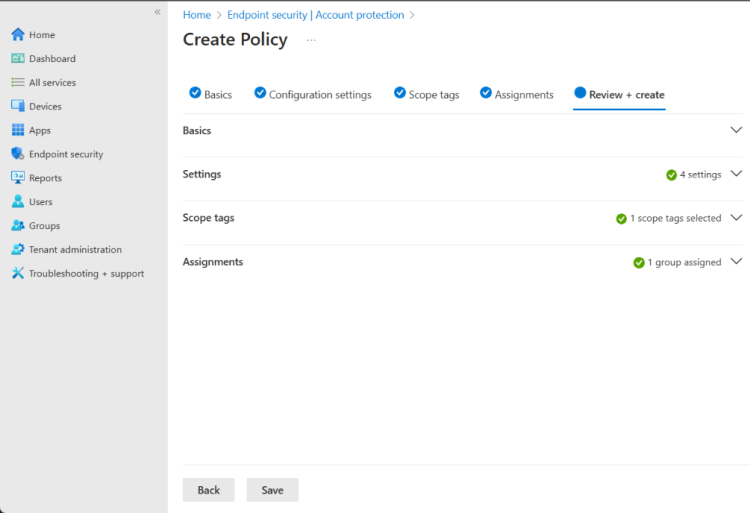
Now you should wait sometime until the Windows LAPS policy deployed to the PCs.
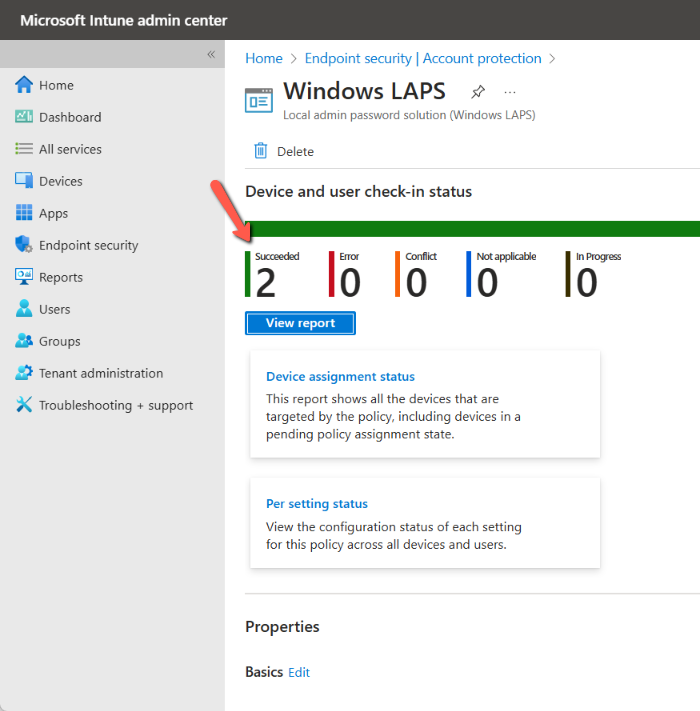
If you would like to check the status of the deployment you can click on Endpoint security -- Account Protection, and click on the Policy of the Windows LAPS.

Here you can check the status of the deployment. How many devices succeeded or failed including the errors to help for troubleshooting
Wrap Up
Windows LAPS it's a great and simple solution. However today lot of employments are working remotely. The Windows LAPS policy in Intune can fill the gap and keep Local Administrator accounts secure in Workstations that aren't connected to the internal LAN very often.


