


Today, security is one of the most important tasks in IT. To be honest, it's very difficult to be up to date in all aspects of your environment that you are supporting. It's time-consuming and needs a lot of effort.However, we are trying to automate as many tasks as we can to make our lives easier.
Managing Windows local administrators on PCs is very difficult in small or large companies. Do you agree that the most common practice is to use the same password for the local administrator and never change it?
How many users in your environment know the Local Administrator password? How safe is it? If you decided to change the local administrator password, how time-consuming was it?
Windows LAPS (Local Administrator Password Solution) can automate this task and secure the Local Administrator password.
Are you bored with a lot of words? Let's start the practice !!! I wrote for the Legacy Microsoft LAPS years ago.
Microsoft created a new version of Windows LAPS with a lot of improvements. Include EntraID, Intune, and better security. If you need to read more details about the improvements, open the What is Windows LAPS?
What is Windows LAPS
Windows LAPS is a feature that automatically manage and backups the password of a local administrator account on your Active Directory or Entra ID. You can also use Windows LAPS to backup the DSRM password on your Active Directory.
Prerequisites
Before start to implement the Windows LAPS you must fullfil the following prerequisites.
- Is available in the following Windows Versions
- Windows 11 23H2 (and later Windows Client releases)
- Windows Server 23H2 (and later Windows Server releases)
- Windows 11 22H2 - April 11 2023 Update (and later)
- Windows 11 21H2 - April 11 2023 Update (and later)
- Windows 10 - April 11 2023 Update (and later)
- Windows Server 2022 - April 11 2023 Update (and later)
- Windows Server 2019 - April 11 2023 Update (and later)
- Domain Functional Level must be 2016 and later.
How to setup Windows LAPS
You can deploy Windows LAPS to the on-premises environment or through Intune if your environment is Hybrid. Today i will explain how can install Windows LAPS to the on-premises environment.
#Step 1 - Create OU in the Active Directory.
First of all we must create an Organization Unit in Active Directory to place the Computer Objects if we don't already have one.
#Step 2 - Upgrade Active Directory schema.
Then we should upgrade the Active Directory schema. We will run the following PowerShell command from any of the domains and automatically the schema will be updated in all the domain controllers of the domain.
Update-LapsADSchema
Press A (Yes to All) if you would like t proceed.

After the command completed successfully open the Properties of any Computer and verify that the tab LAPS exists.
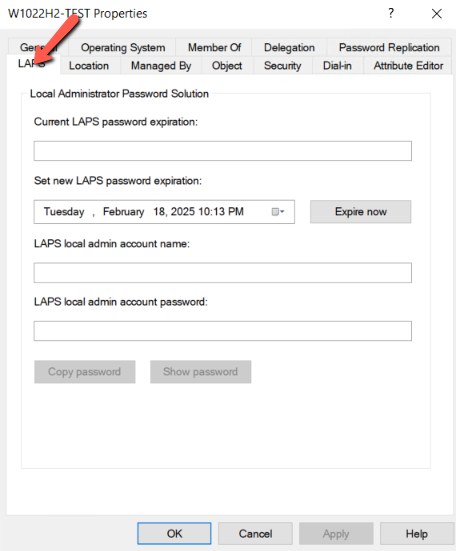
#Step 3 - Grant the managed device password permissions
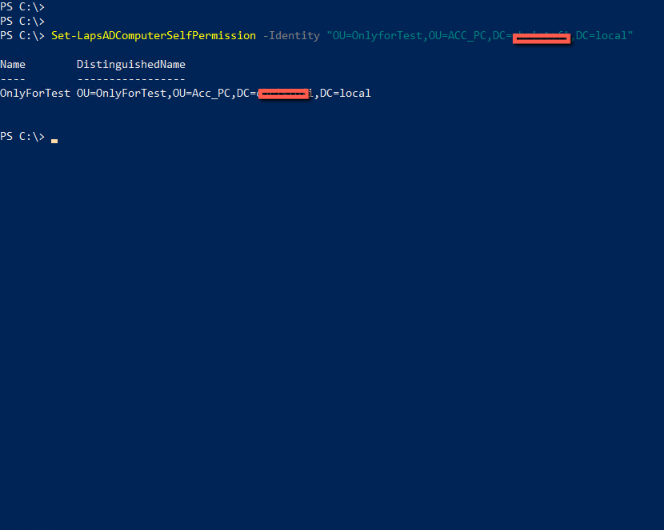
The computers should have permissions to update their passwords. To give the appropriate permissions to the computers run the following command
Set-LapsADComputerSelfPermission -Identity <OU Name)
#Step 4 - Configure the Group Policy
The last step is to configure the Group Policy and deploy it to the right Organization Unit. Note that we need to update the Central store of Policy Definitions in Domain Controller to be available the LAPS Group Policy.
From a Windows 10,11 copy the folder C:\Windows\PolicyDefinitions to the \\<domain>\SYSVOL\<domain>\policies\PolicyDefinitions
If you already have a folder PolicyDefinios the follow the steps to avoid any issue
- In \\<domain>\SYSVOL\<domain>\policies create a new folder PolicyDefinitions-<windows version>. For example PolicyDefinitions-22H2.
- Then copy all the admx,adml files from the C:\Windows\PolicyDefinitions of the Windows 10,1 to the folder PolicyDefinitions-22H2
- Rename the PolicyDefinitions folder in \\<domain>\SYSVOL\<domain>\policies with a name like PolicyDefinitions_bak
- Rename the PolicyDefinitions-22H2 to PolicyDefinitions.
- In case of any issue we can revert back the old PolicyDefinitions until resolve the issue.
Now we can create the new Group Policy Object.
- Navigate to the Computer Configuration > Policies > Administrative Templates > System > LAPS.
- Open the Configure Password Backup Directory.
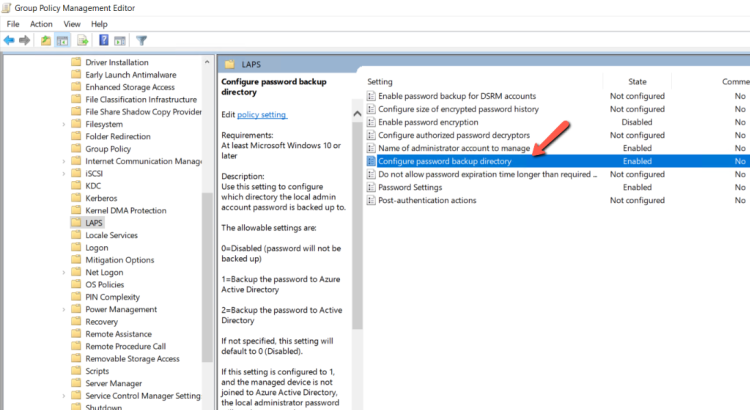
- Enable it and select the Active Directory.

- Open the Password Settings.

- Change the Options based on your requirements.

- If you are using a custom local Administrator account in the PCs then you should enable one more setting. If you are using the default Local Administrator account you don't need to enable it.
- Open the Name of the administrator account to manage.

- Enable it and type the custom Local Administrator account that you have created in the PCs.
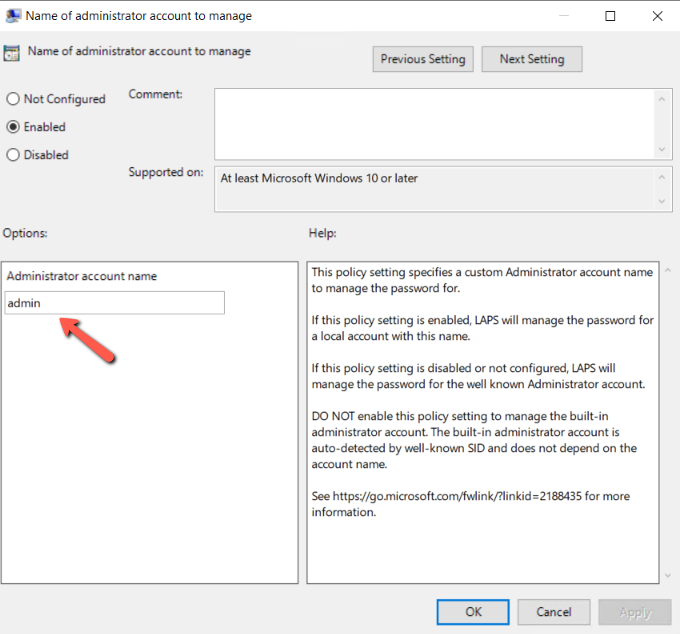
- These are the minimum configuration to enable the Windows LAPS.
- However there are more options to use in the Windows LAPS Group Policy
- I recommend to use the Enable backup password for DSRM account. It will save the password of Directory Service Restore Mode administrator account. As we know this password it's very rare to use it and sometimes might be forget or never noted.
#Step 5 - Verify the apply of Group Policy
After the group policy retrieved from PCs , you can verify it from the the Active Directory. Open the Computer Properties from a PC which included in the Group Policy. Click on LAPS Tab and verify that the LAPS admin account password created.

#Step - Troubleshooting Windows LAPS
Sometimes might be have issues with the Windows LAPS Group Policy. You can find all the logs related with the Windows LAPS from the Event Viewer in Microsoft - - Windows - LAPS that can help you to resolve your issues.

That's it!!
Wrapping Up
The new Windows LAPS has a lot of improvements and it's built in on Windows instead of the Legacy Microsoft LAPS solution.
The deployment it's straightforward without lot of complexity and issues. Event if you are face any issue with the Windows LAPS Group Policy you have logs that can help you to resolve the issue fast.


