Windows Server 2025 Failover Cluster in a Workgroup: Step-by-Step Setup and Troubleshooting

It's not very common but sometimes might be need to setup a Windows Failover Cluster in Workgroup. Last month i had a request to configure a Windows Failover Cluster in Windows Server 2025. Honestly, it wasn't so easy and i face various issues until to complete the Setup.
So, let's start the practice and explain all the errors that i faced.
Lab Environment
My Lab environment for the Windows Failover Cluster in Workgroup is consist by 2 Nodes with Windows Server 2025 Evaluation Edition.
Create an admin account in all nodes
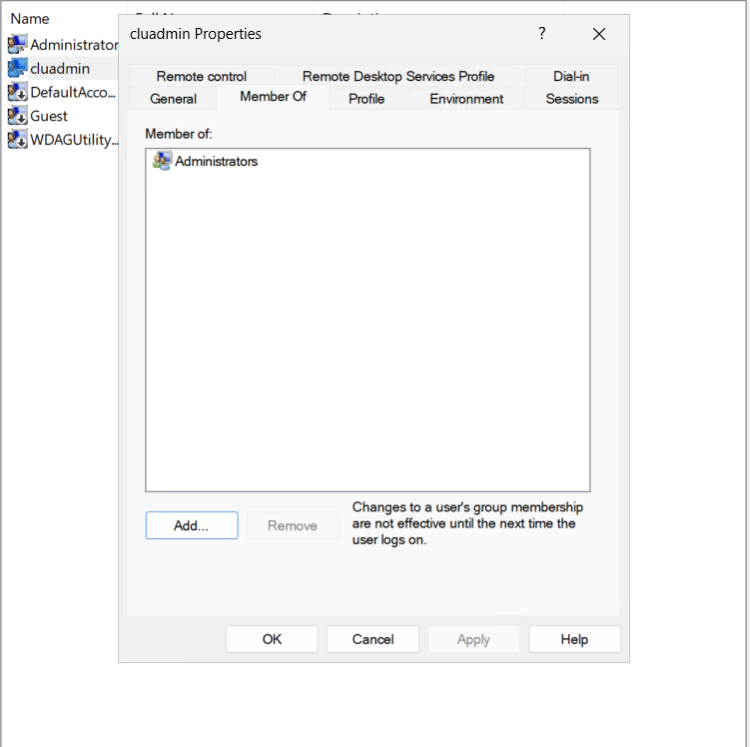
We don't want to use the built-in administrator account. So we need to create a new Administrator accounts in both nodes of our Lab. If you have more than 2 nodes you should create the administrator account in all nodes. I created the new administrator account with username cluadmin as you can see in the image.
Set the primary DNS Suffix
Very important step is to create a primary DNS Suffix in both nodes because Failover Cluster is very depend in DNS. Because there is not a native PowerShell command we will do it from GUI.
- Click on Search and type View advanced system setting.
- Open it and select the Tab Computer Name.
- Click on Change
- Click on More
- Type the Primary DNS Suffix that you prefer. In our scenario we are using the askme4tech.local.
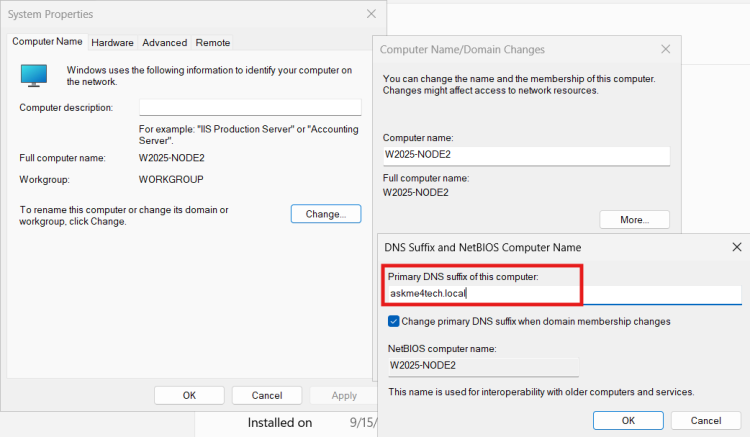
If you will not create the Primary DNS Suffix when you will start to Validate the cluster you will get the following error
<<The node can't be contacted. Ensure that the node is powered on and is connected to the network>>

Edit the host file
We don't have a DNS to resolve the host names. We need to edit the C:\Windows\system32\drivers\etc\hosts and add the IP addresses and server names of the Nodes.
Enable the WSMAN
For those that they don't know what is the WSMAN. The WSMAN is a protocol in Windows that used to manage devices remotely. It's not enable by default. We need to enable it and add in the TrustedHost file the server names of the nodes that will allow to connect remotely with powershell.
Otherwise the nodes it will not allow to communicate each other and the Failover Cluster installation will be failed.
We can enable and configure the WSMAN with two ways.
With PowerShell
Open a PowerShell as Administrator and type the following command:
Set-Item WSMan:\localhost\Client\TrustedHosts -Value "server1,server2,server1.dns suffix,server2.dns suffix"
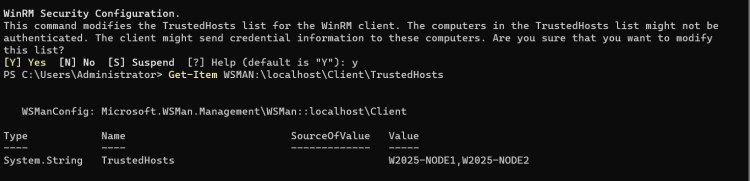
Then type the following command to verify that the server names added to the Trusted Hosts list
Get-Item WSMAN:\localhost\Client\TrustedHosts
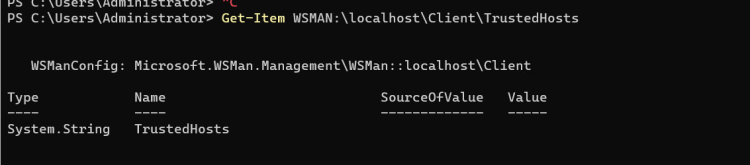
With Group Policy Object (GPO)
If you would like to create a GPO follow the steps
- Type in search gpedit.msc
- Navigate to Local Computer Policy -- Computer Configuration -- Administrative Templates -- Windows Components -- Windows Remote Management (WinRM) -- WinRM Client -- Trusted Hosts.
- Add the Server names separated by comma.
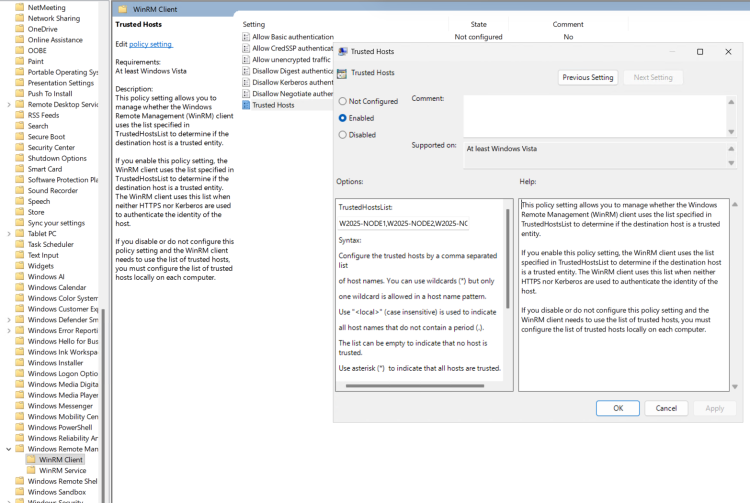
- Open a PowerShell and type gpupdate /force to update the Group Policy in the Server
Enable CredSSP
The nodes aren't in a Domain to use Kerberos authentication and issue a Kerberos ticket. The most secure protocol for the authentication between the nodes in Workgroup is the CredSSP that will be used to secure pass credentials from one server to another.
If we will not enable the CredSSP then at the Validation phase it will not be able to access in the second node. The most common error that you will get is an access denied .
- Run the command to allow the server to delegate the credentials to the specific DelegateComputer
Enable-WSManCredSSP -Role Client -DelegateComputer 'type fqdn of servers'
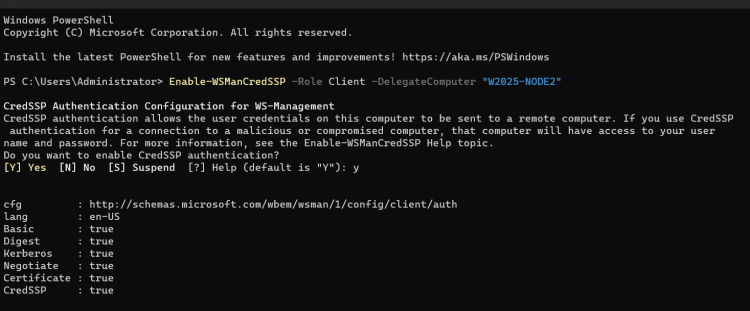
- Run the command to allow receive delegate credentials.
Enable-WSManCredSSP -Role Server - Check the status of CredSSP
Get-WSManCredSSP
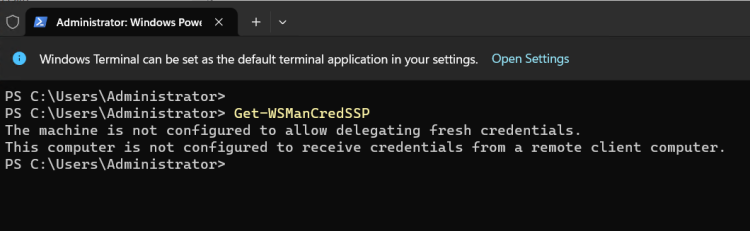
Disable UAC (User Access Control) for the Remote Access
If you are using a custom admin for the Failover Clustering and not the Built-in administrator you must disable the UAC.
The User Access Control (UAC) blocks the custom administrators to have full admin priviledges access when comes from the network. You must disable it to avoid errors like access denied or you don't have administrative privileges .
You can change it with PowerShell or from registry. The following instructions must be change it in all Nodes that will be used for the Failover Clustering.
From PowerShell
Run the following command to disable the UAC and restart the Server.
New-itemproperty -path HKLM:\SOFTWARE\Microsoft\Windows\CurrentVersion\Policies\System -Name LocalAccountTokenFilterPolicy -Value 1 -PropertyType DWORD
From the Registry
- From the search type regedit.
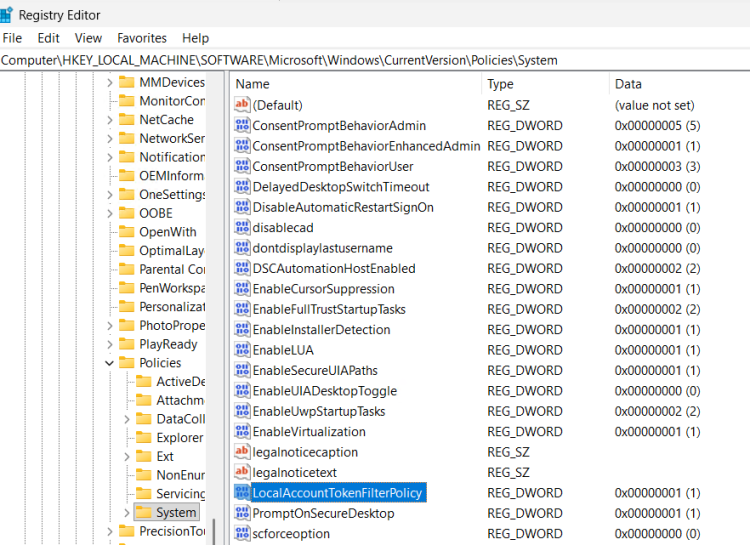
- Navigate to HKLM:\SOFTWARE\Microsoft\Windows\CurrentVersion\Policies\System.
- If you don't find the entry LocalAccountTokenFilterPolicy right click in the System, select New -- DWORD (32-bit) Value.
- Type LocalAccountTokenFilterPolicy and give the Value 1.
Install HYPER-V and Failover Cluster features
A simple and quick way to install Failover and HYPER-V features is with PowerShell commands.
- Run the following PowerShell commands.
Install-WindowsFeature -Name Failover-Clustering -IncludeManagementTools
Install-WindowsFeature -Name Hyper-V -IncludeManagementTools
Validate the Cluster
The last step is to validate the cluster. As usual you can do it with PowerShell or GUI
With PowerShell
- Open the PowerShell as Administrator
- Run the command.
- Wait until finish the Validation and get the Report
Test-cluster -Nodes "server1,server2"
GUI
From the GUI you have to do more steps.
- Open the Failover Cluster Manager
- Right click in Failover Cluster Manager and select Validate Configuration
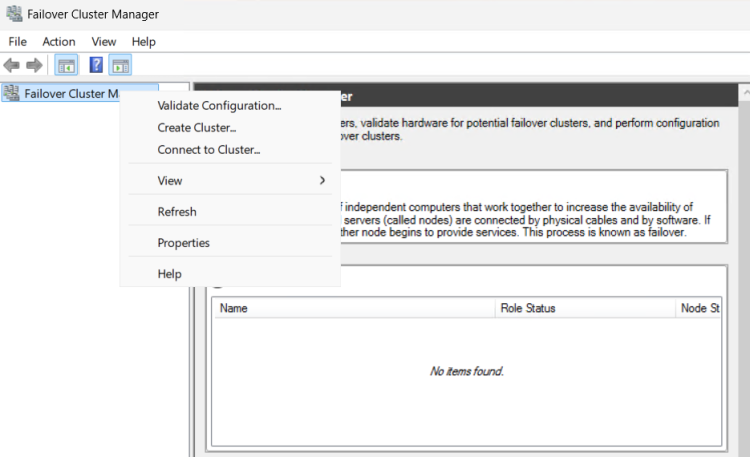
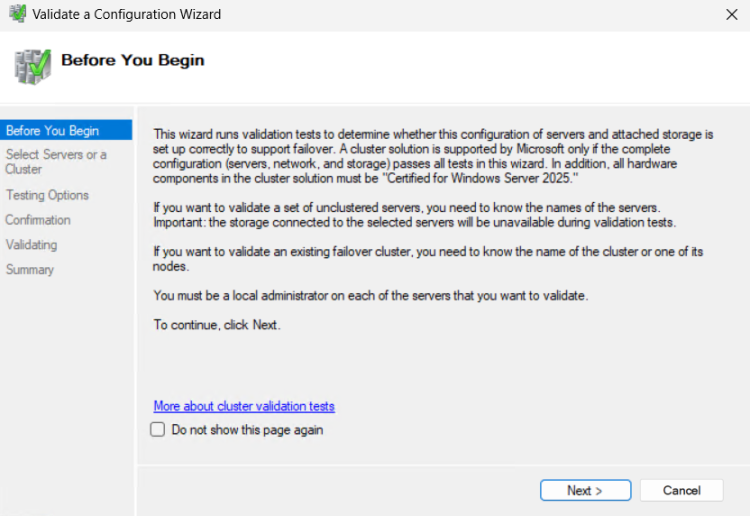
- Click Next
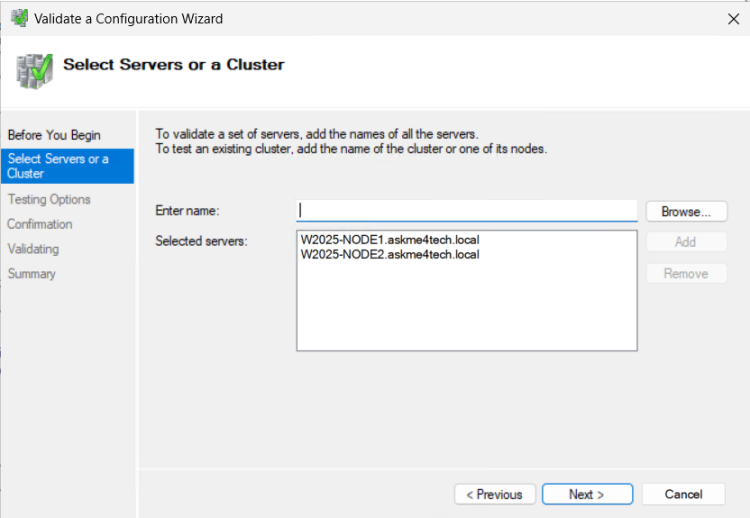
- Type the Server names of the Nodes and click Add. One by one. Click Next.
- Select Run all tests (recommended). Click Next.
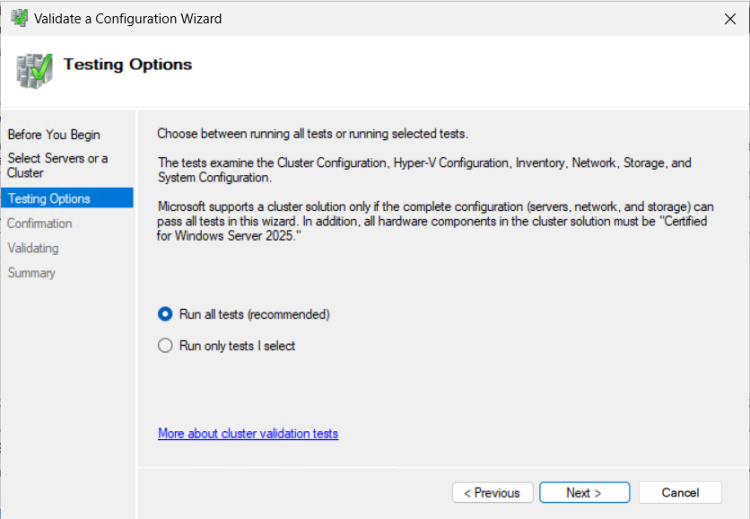
- Once again Next in Confirmation to start the Validation.
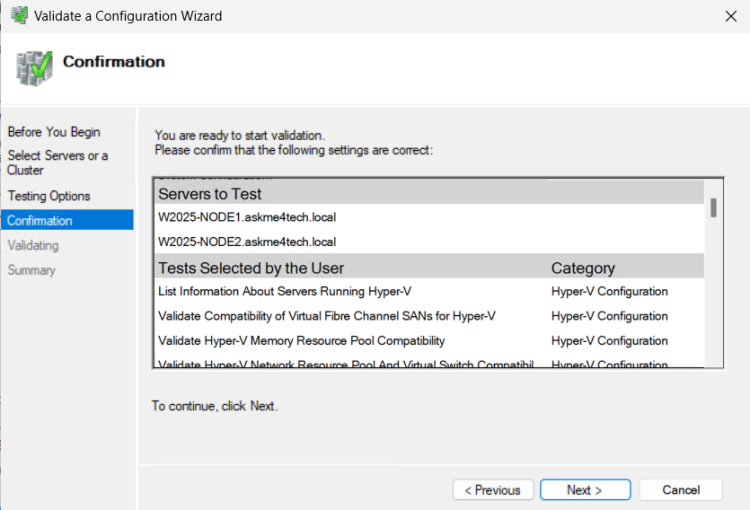
- Note that for the Storage test might be get errors because you don't have create the Cluster Share Volumes (CSV). You can run again the Validation when you will have configure the Cluster Share Volumes (CSV) as well.
- If you will pass the Validation you can start to create the Cluster.
You can continue in the link How to prepare and install Failover Clustering in Windows Server 2016 to create and configure the Failover Cluster. The steps are the same in Domain or Workgroup.